Exact Text in AI Video: How to Avoid Regenerating the Background
A practical workflow for logos, prices, and captions: generate a background with an empty area, then add text as a separate layer so letters and numbers stay readable between frames.
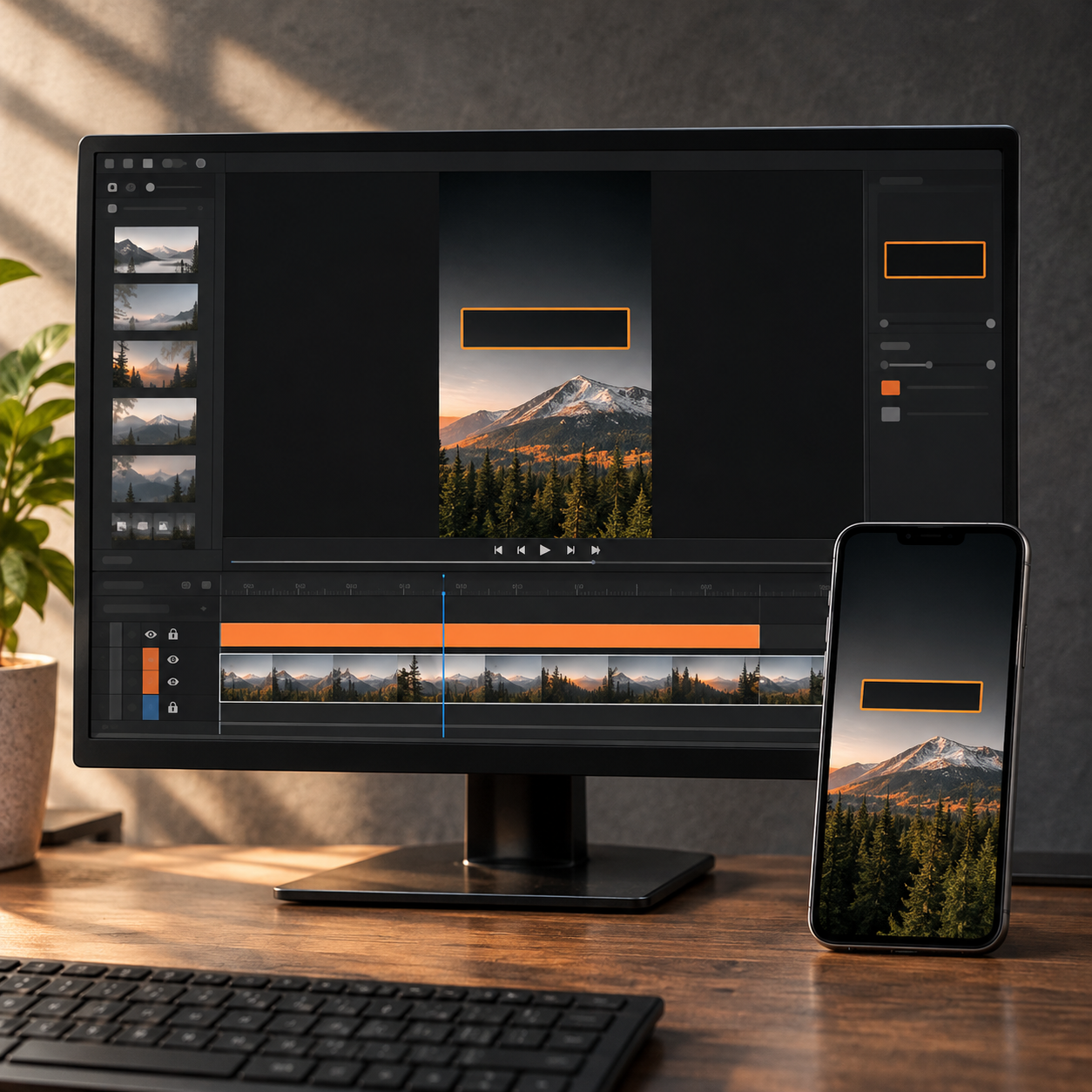
To get a readable caption without spending credits on the background again, split the job: generate a background with an empty area for the text, then add the caption as a separate layer in your video editor. That way you can fix spelling, timing, and contrast without regenerating the background. Generative video can distort letters, numbers, and the shape of a caption between frames, so it is safer not to bake text into the generation and instead assemble it during editing.
Step-by-step workflow
- Plan the empty zone. Decide where the caption will sit: top, center, or lower third. In the generation prompt, describe the background and keep that area free of details and high-contrast objects.
- Generate the background. Use the sample prompt below. Do not ask the model to draw the text itself — only the background with a clean area.
- Add text as a layer. In your video editor, place the caption over the background. Choose a font, color, and outline that stay readable on a phone.
- Adjust timing and contrast. A separate layer lets you change when the text appears, how long it stays, and its contrast without regenerating the background.
- Check on a phone screen. Watch the start, middle, and end of the clip: the caption should not drift, get cropped, or blend into the background.
Sample prompt for a vertical video background
Vertical 9:16 video, soft gradient background in dark tones, light grain, slow particle movement. Leave the upper third as a clean area with no objects or sharp details for a future caption. No text, letters, numbers, or logos. Soft directional lighting.
Worked example. The prompt sets the format, the mood of the background, and a specific empty zone. Leaving text out of the prompt reduces the risk of distortion. After generation, you add the caption as a layer and check it on a phone at three points: start, middle, and end.
Limitations
A static caption on a flat background is simpler than text on a moving object. If the caption must sit on an object, you will need tracking or manual keyframes, and for some scenes an overlap mask. Generative video can still distort letters and numbers between frames, so checking on a phone screen is essential. Do not assume a separate layer guarantees perfection: font, outline, and contrast still need tuning.
Compact checklist
- The empty zone for the caption is included in the prompt.
- The prompt does not ask the model to draw text.
- The caption is added as a separate layer.
- Spelling, timing, and contrast are checked.
- The clip is reviewed on a phone at the start, middle, and end.
Try it on your own task
Prepare a task to compare models. Opens an editable prompt. Trial chat: 3 messages a day.
Prepare my prompt →